Flangapp AI
Flangapp AI is a chat assistant for administrators. You describe in plain language what to change in a website-to-app project, and the assistant applies the changes to the app's settings for you: general info, design and template, side menu, navigation and bottom tab bar, permissions, splash screen, app texts and hidden website elements. It can also restyle the website inside the app with custom CSS and JavaScript: colours, fonts, a dark theme, hiding blocks and banners.
The assistant works only within what the Flangapp template can do. It never edits the app's source code, and it can't change the website's own content or data. When a request is clearly impossible, it warns you instead of trying.
1. Connecting to Flangapp AI
No API keys are needed. Flangapp AI connects to the Flangapp billing service by your product license: activate the license in Settings → License Activation, and the install is connected automatically. If the license was activated before the update, the connection is made the first time the credits are shown. If the connection fails, press Try again on the credits card.
2. Credits
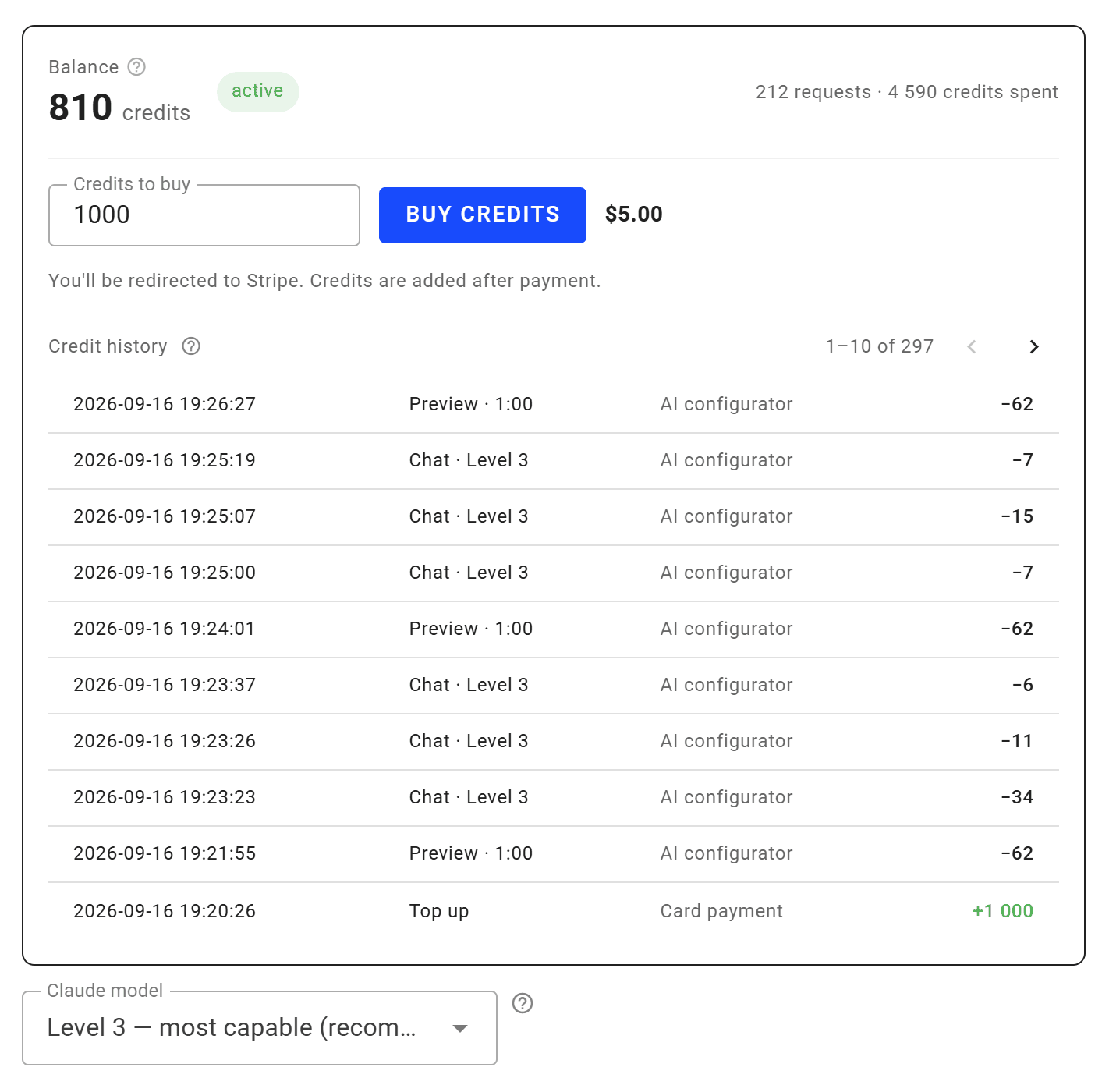
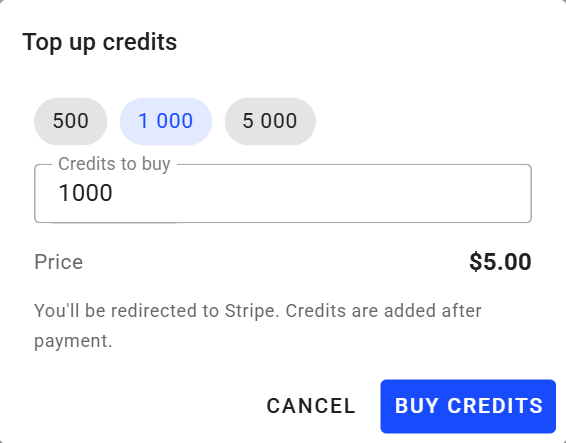
The chat and the live preview are paid from one balance of credits. Open Settings → Flangapp AI to see the balance, buy credits by card (you are redirected to Stripe, the price in USD is shown next to the button) and choose the default model level. Level 3 is recommended. Levels 1–2 are cheaper and simpler, Level 4 is for the hardest requests.
Credit history lists every change of the balance, newest first, ten rows per page: Chat · Level N and Preview charges, Card payment for purchases and Flangapp support for credits added by the vendor.
3. Opening the chat
Go to Control panel → Apps, open an app and choose Flangapp AI in the App settings menu (right under Launch icon). The page has the chat on the left and the live preview on the right.
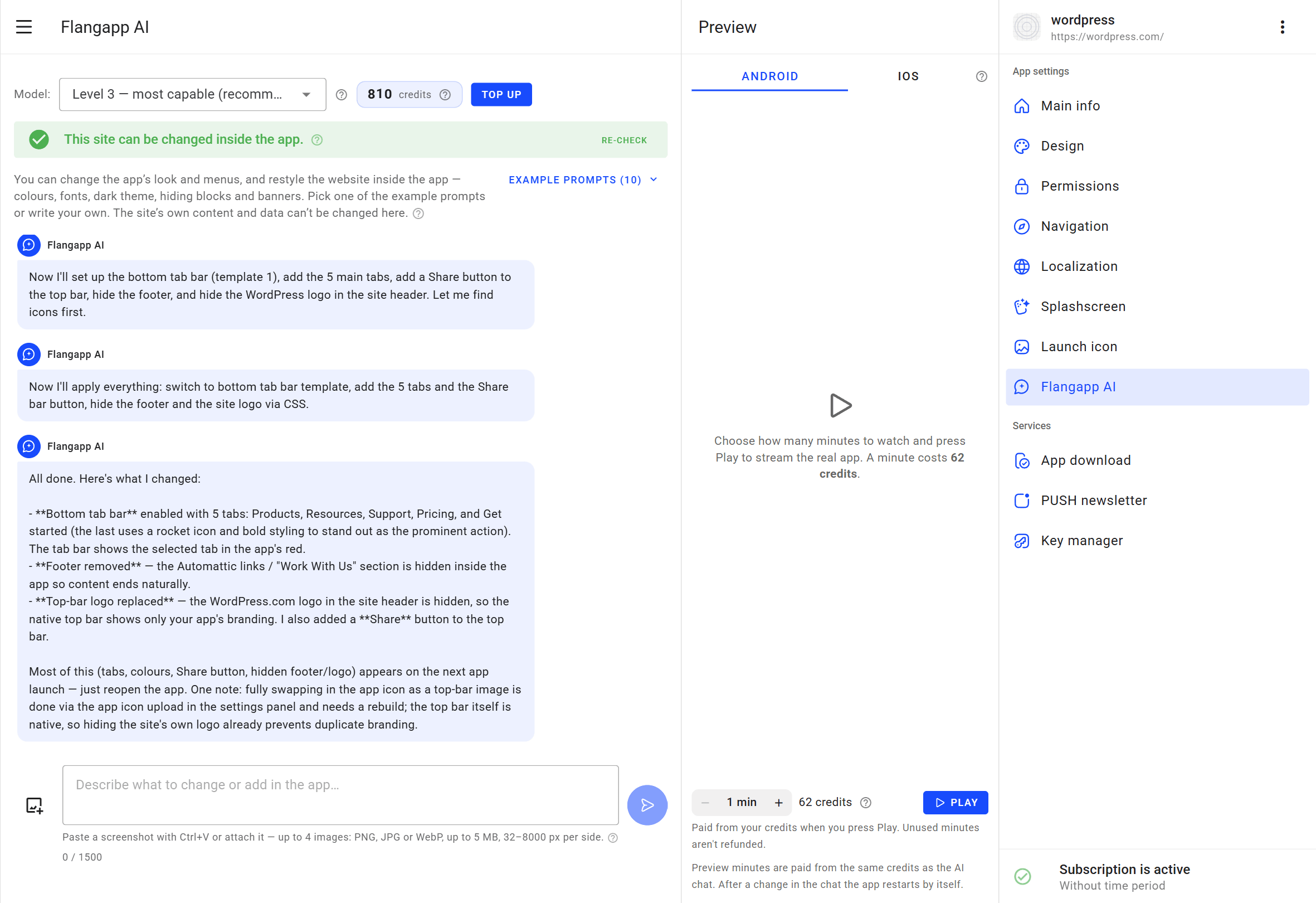
At the top of the page:
- Model — the level used for this app (overrides the default level from Settings).
- Credits — the remaining balance, with a Top up button.
- Site check — whether the website can be restyled inside the app. The site is checked once and the result is kept until you press Re-check. A site can be changeable, limited (for example a JavaScript app or generated class names), blocked (for example a Content-Security-Policy that forbids styles) or unknown (the server could not load it; it usually still works in the app).
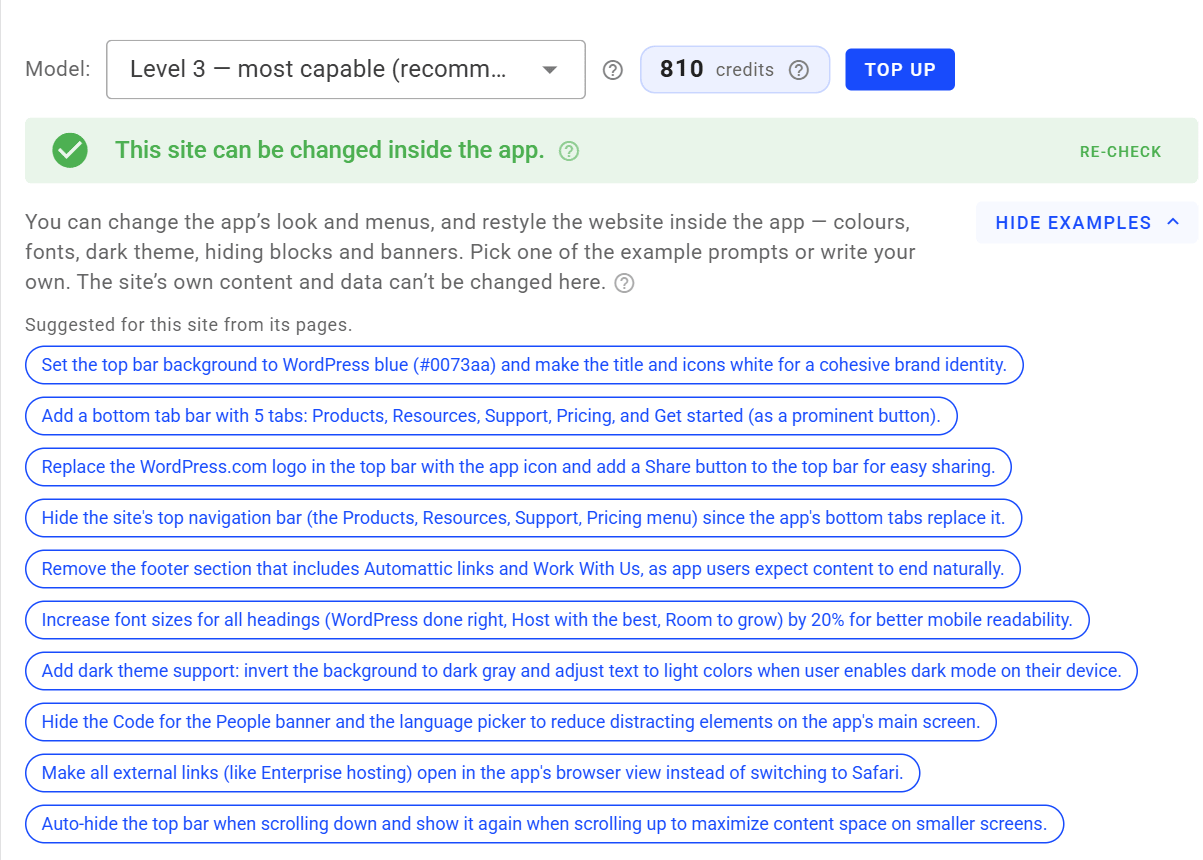
- Example prompts — ready requests written for this particular site from its real pages. Click one to put it into the message box, edit it if needed and send.
Every element that costs credits or needs an explanation has a small ? icon with a tooltip.
4. Chatting with the assistant
Type what you want to change and press the send button. A message can be up to 1500 characters. The assistant reads the app's current settings, inspects the website when needed, applies the changes and tells you what was done. The whole conversation is kept for each app, so you can continue it later.
You can add screenshots to a message: paste one with Ctrl+V or attach it with the image button. Up to 4 images per message, PNG, JPG or WebP, up to 5 MB each.
If the credits run out in the middle of a request, the assistant stops and shows a notice with a Top up button. Your message and the history are kept: after topping up, just write "continue".
The installed app picks up most changes (navigation, colours, custom CSS/JS) the next time it is launched. Changes that are part of the app package itself, such as the launch icon, splash screen or app name, need a new build in App download.
5. Live preview
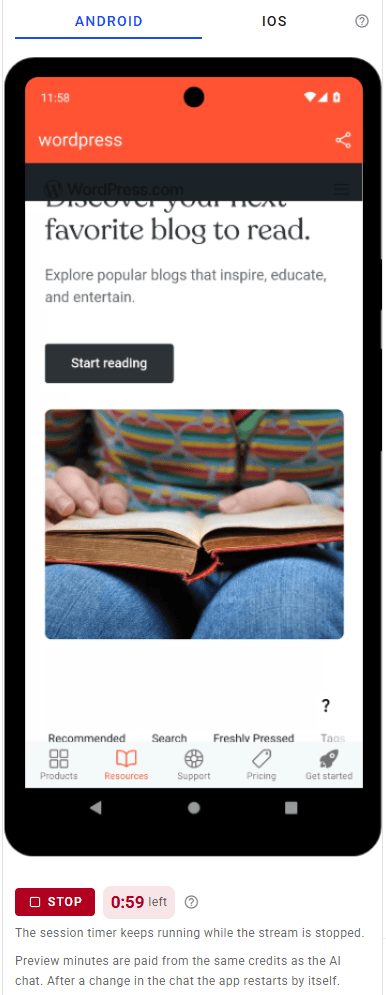
The Preview column streams the real app running on an Android device or an iOS simulator, so you can check the result right on the page. Choose the Android or iOS tab.
Android uses the app's latest APK from App download. If the app has never been built, press Build Android preview (or Build iOS preview on the iOS tab); these preview builds don't need signing keys, don't use the build quota and don't appear in App download. When a newer build appears, it is uploaded to the preview automatically.
The preview is paid by the minute from your credits. Choose how many whole minutes to watch with − / +; the price in credits is shown next to them. Press Play: the minutes are charged at once and are not refunded.
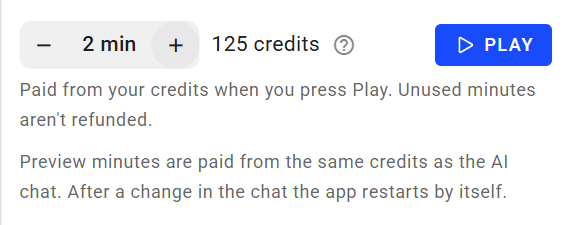
While the session runs, a countdown shows the time left. Stop only hides the stream — the timer keeps running, and Play resumes it while time is left. One session is shared by the Android and iOS tabs, and reloading the page continues the same countdown. After a change in the chat the app in the preview restarts by itself.