
Subscription
If the subscription is not renewed, the client will lose the ability to create new application builds, send push messages, and users of the client's application will receive a notification while app launch that the project is not available.
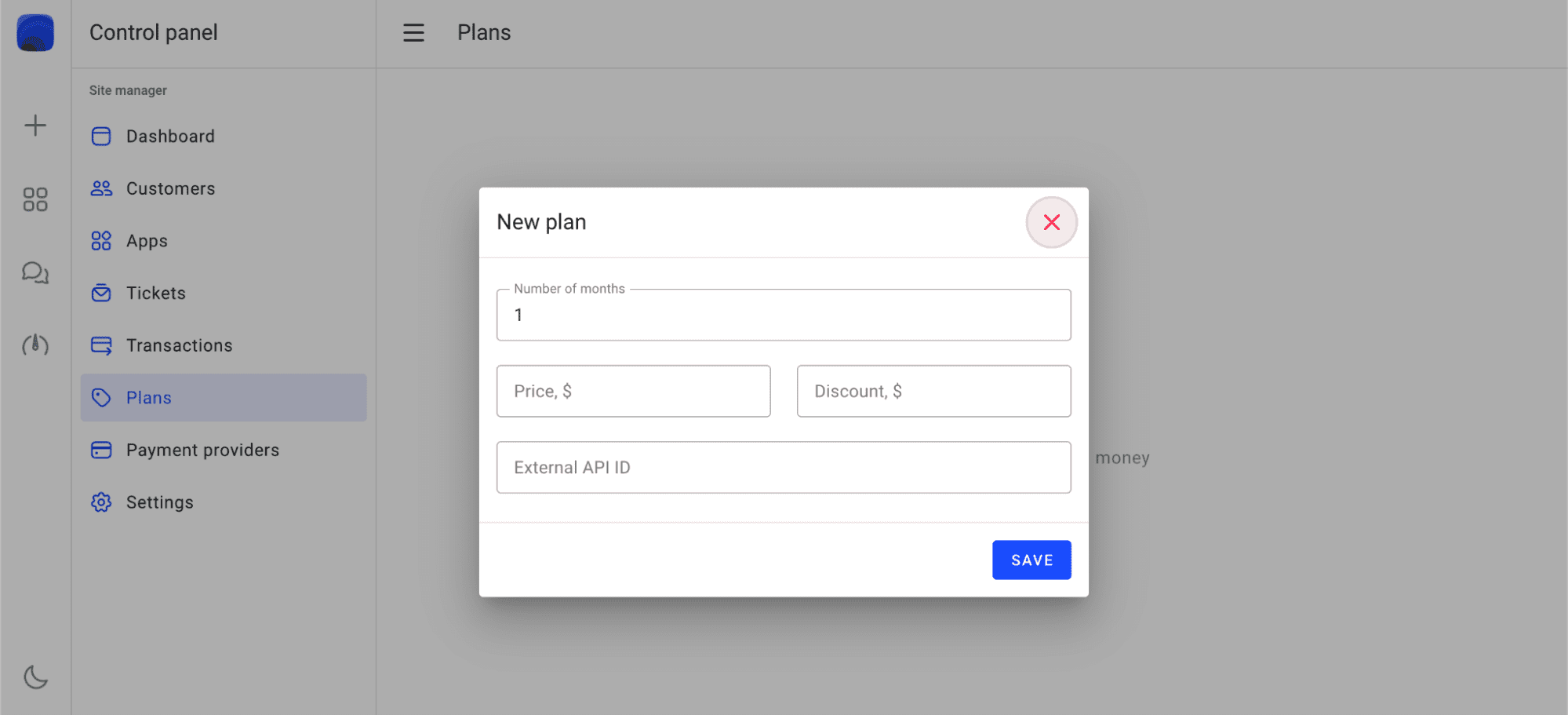
You can add a new subscription plan in the control panel in the section Dashboard - Plans - Create plan section. Fill in the form as shown below:
Select plan type
Select the subscription type of the plan.
Number of months
Define the subscription activity cycle in months (e.g., 1, 3, 6, 12). This determines how long the subscription will be active before renewal.
Price
Set the subscription price in the currency configured in your site settings. This is the amount users will be charged for the subscription period.
Discount
Comparative discount rate. This value does not affect the final price of the plan, but only shows the savings among plans. For example, you could enter a price of $1 for a non-discounted monthly subscription and a price of $10 for an annual subscription by entering $2 in this field. So your customers will see that they can save $2 when they sign up for an annual subscription.
Checkbox unlimited build count
If this checkbox is checked, the plan will allow the user to create an unlimited number of builds. Otherwise, you can set the maximum number of builds that the user can create during the subscription period. After renewing the subscription, the number of builds will be reset to this value.
In the External ID field, you have to enter the subscription ID that was created in your payment provider account.
Stripe
You can create a new product with "Recurring" type in the “Product catalog” section https://dashboard.stripe.com/products?active=true:

Right after creation confirmation, you will be able to copy the API ID (price_id):
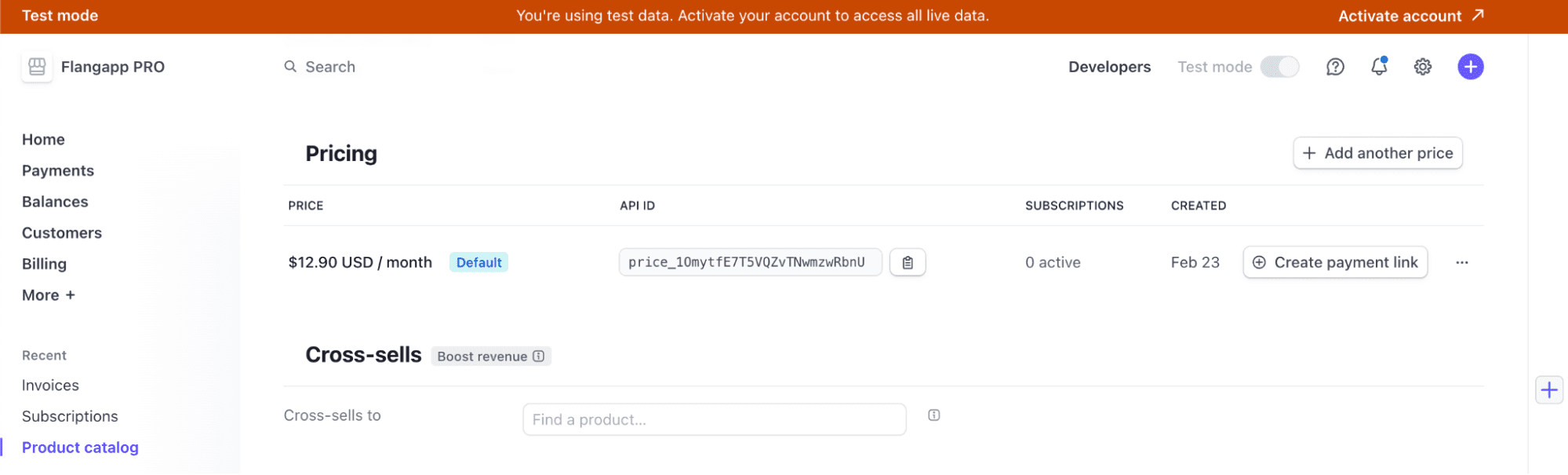
This value must be entered in the External Api ID field in the Flangapp plan settings. Please keep in mind that your billing cycle and subscription price have to match what you see in your Flangapp dashboard.
PayPal
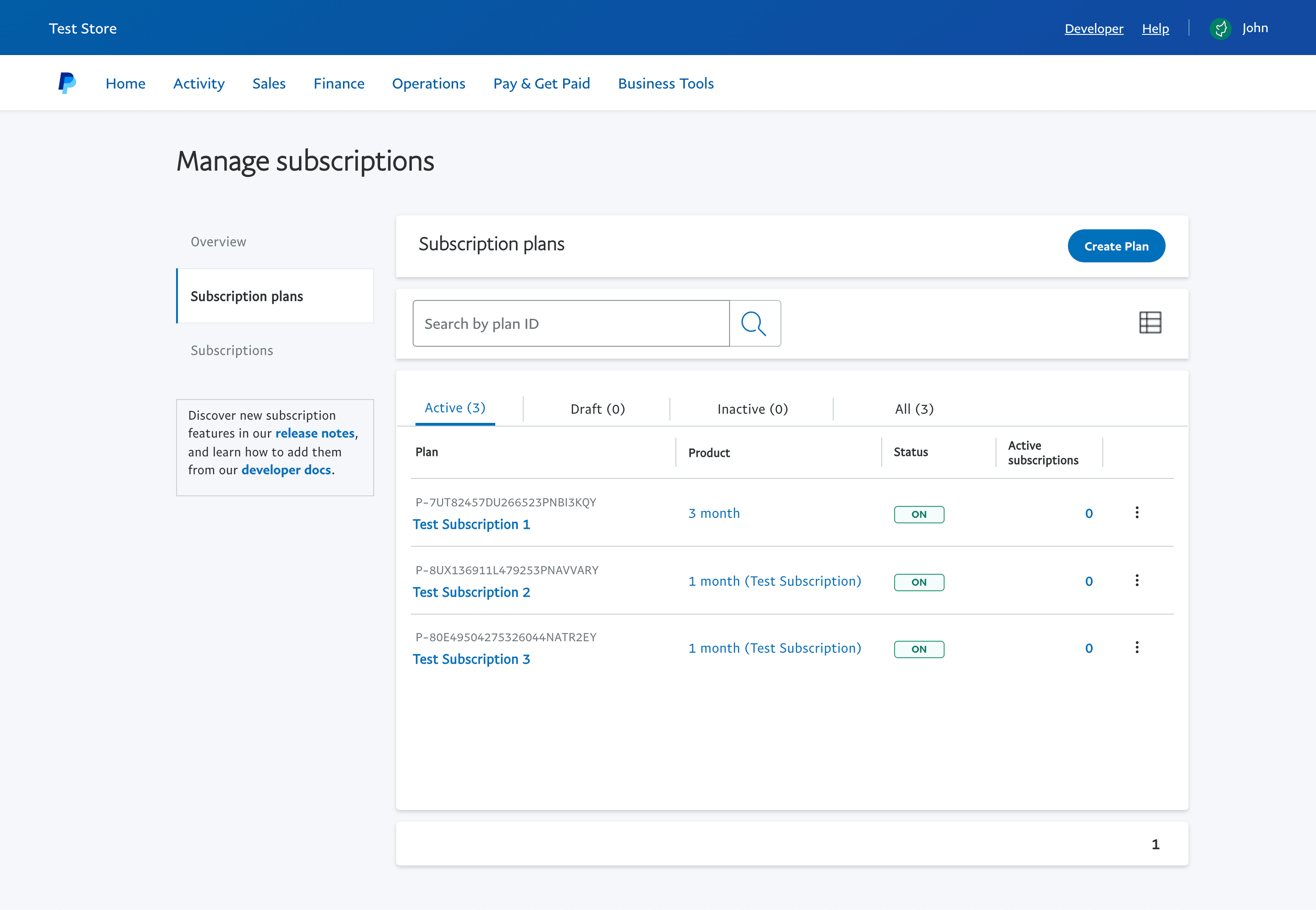
Go to your Business Dashboard https://www.paypal.com/mep/dashboard and create a new subscription in the Sales/Subscription Plans section:
Click the "Create Plan" button and then click the "Create a Subscription Product" button:
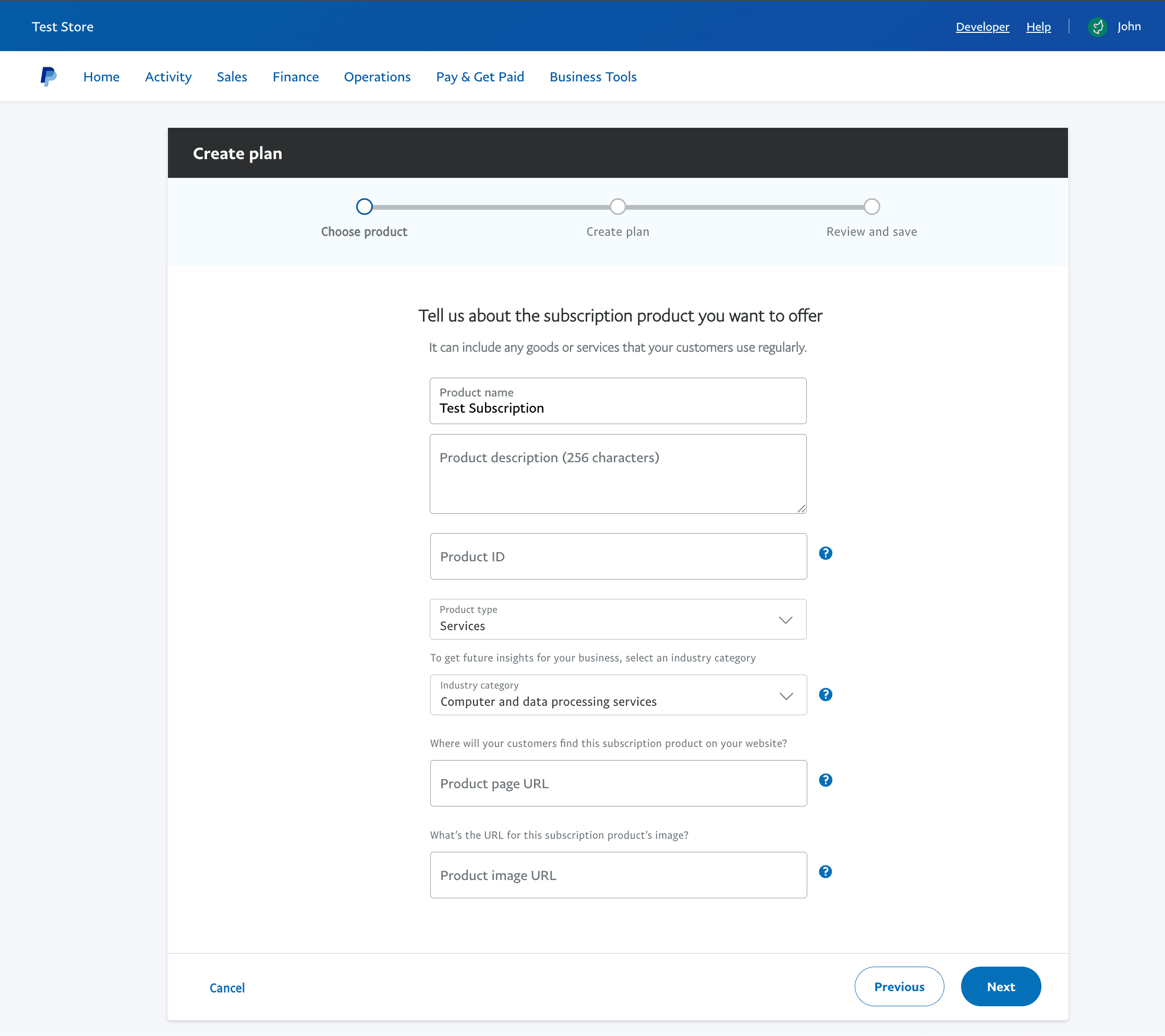
Fill in the form and click the "Next" button:
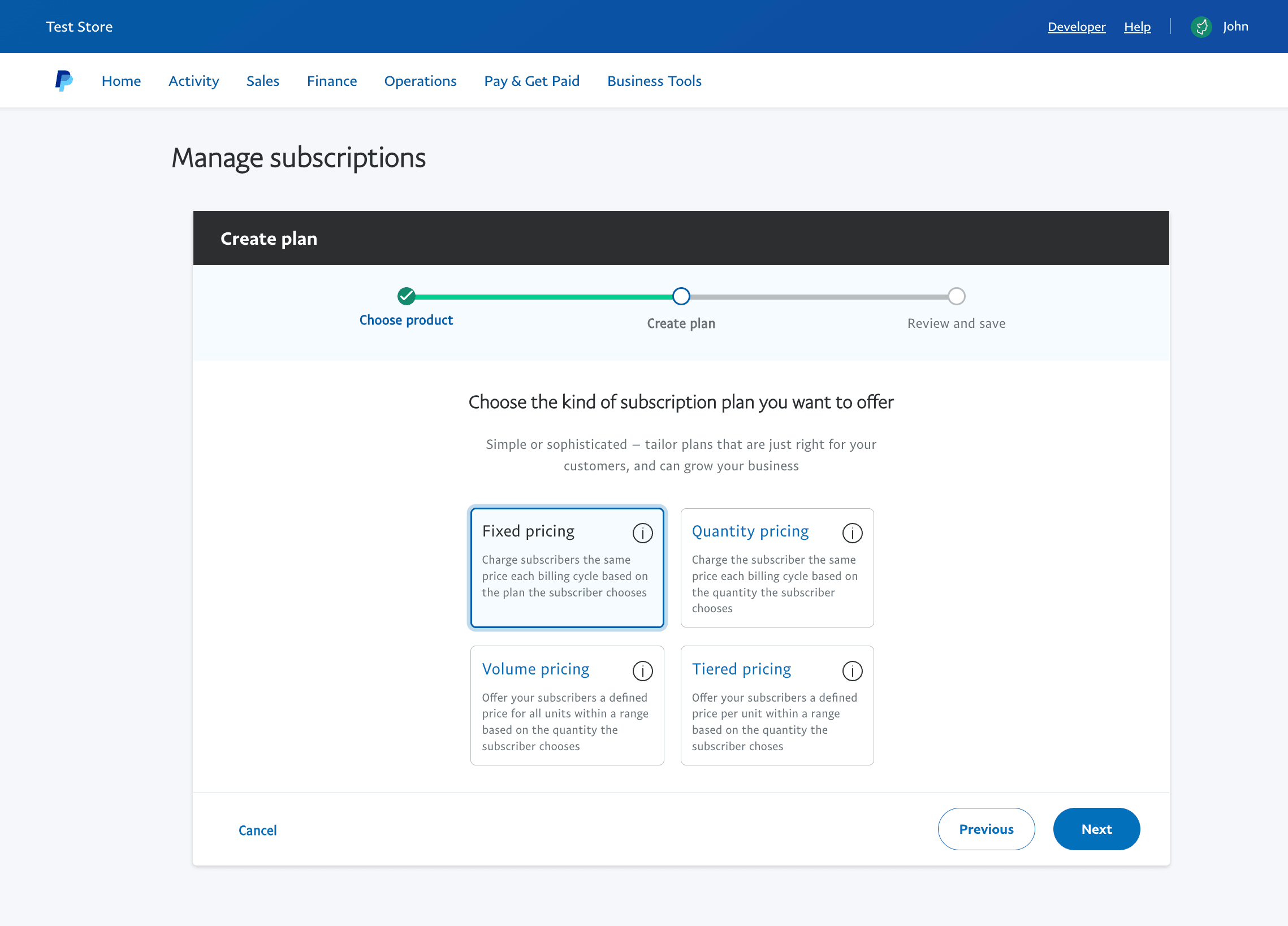
Select the "Fixed pricing" option and click the "Next" button:
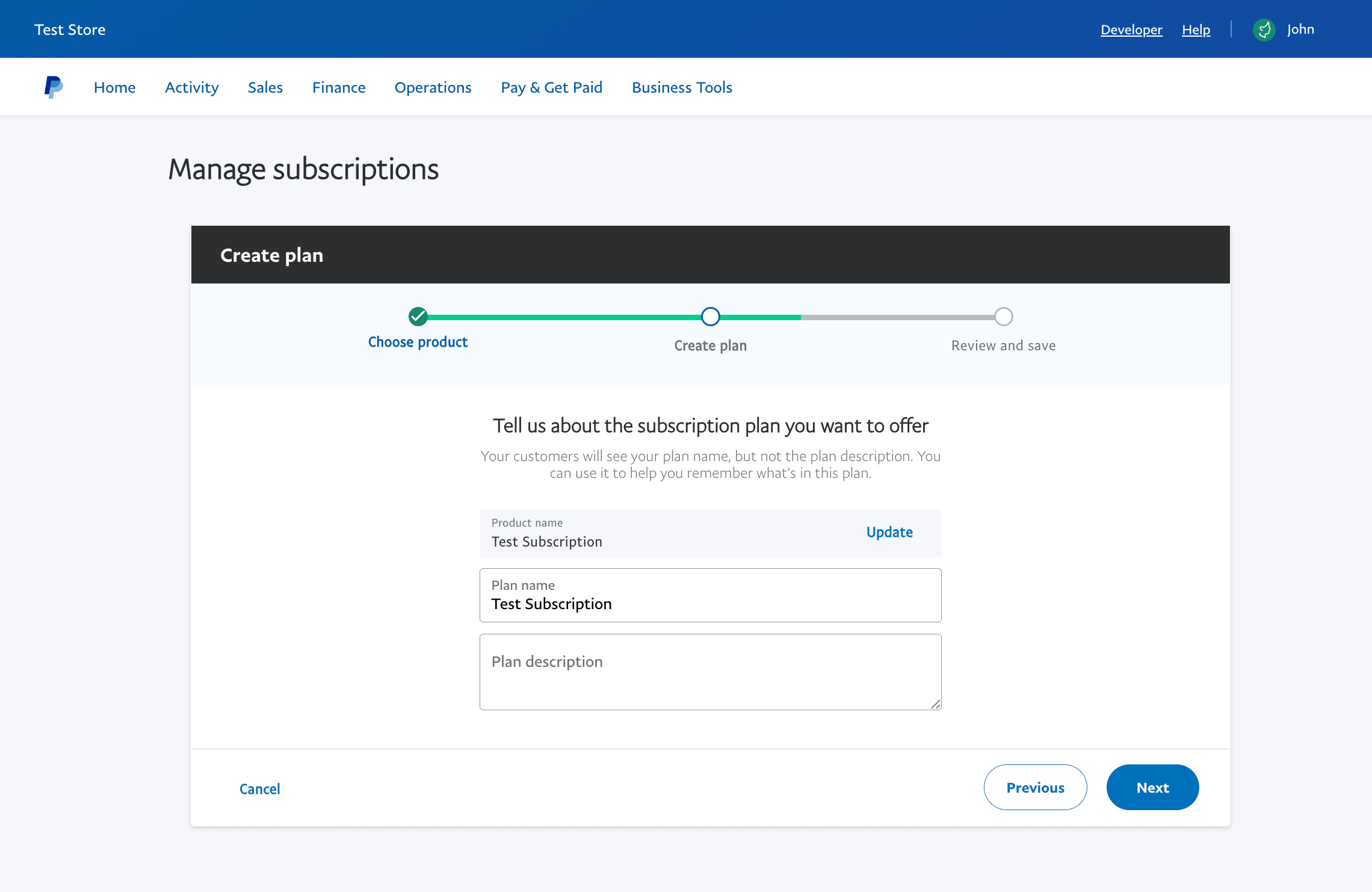
Fill in the form and click the "Next" button:
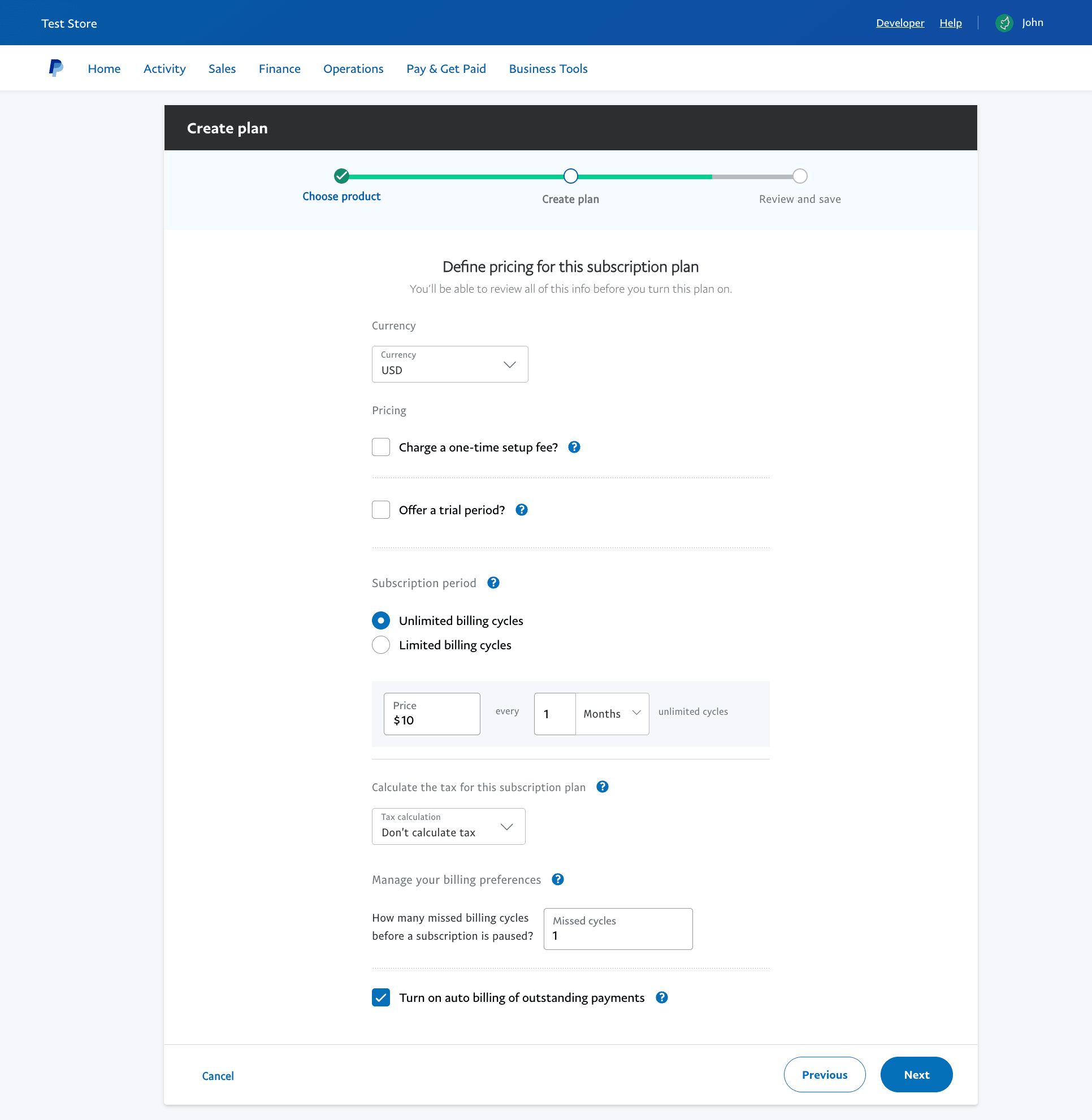
Fill in the form and click the "Next" button:
Before clicking the "Turn Plan On" button, you will be able to copy the Product ID:
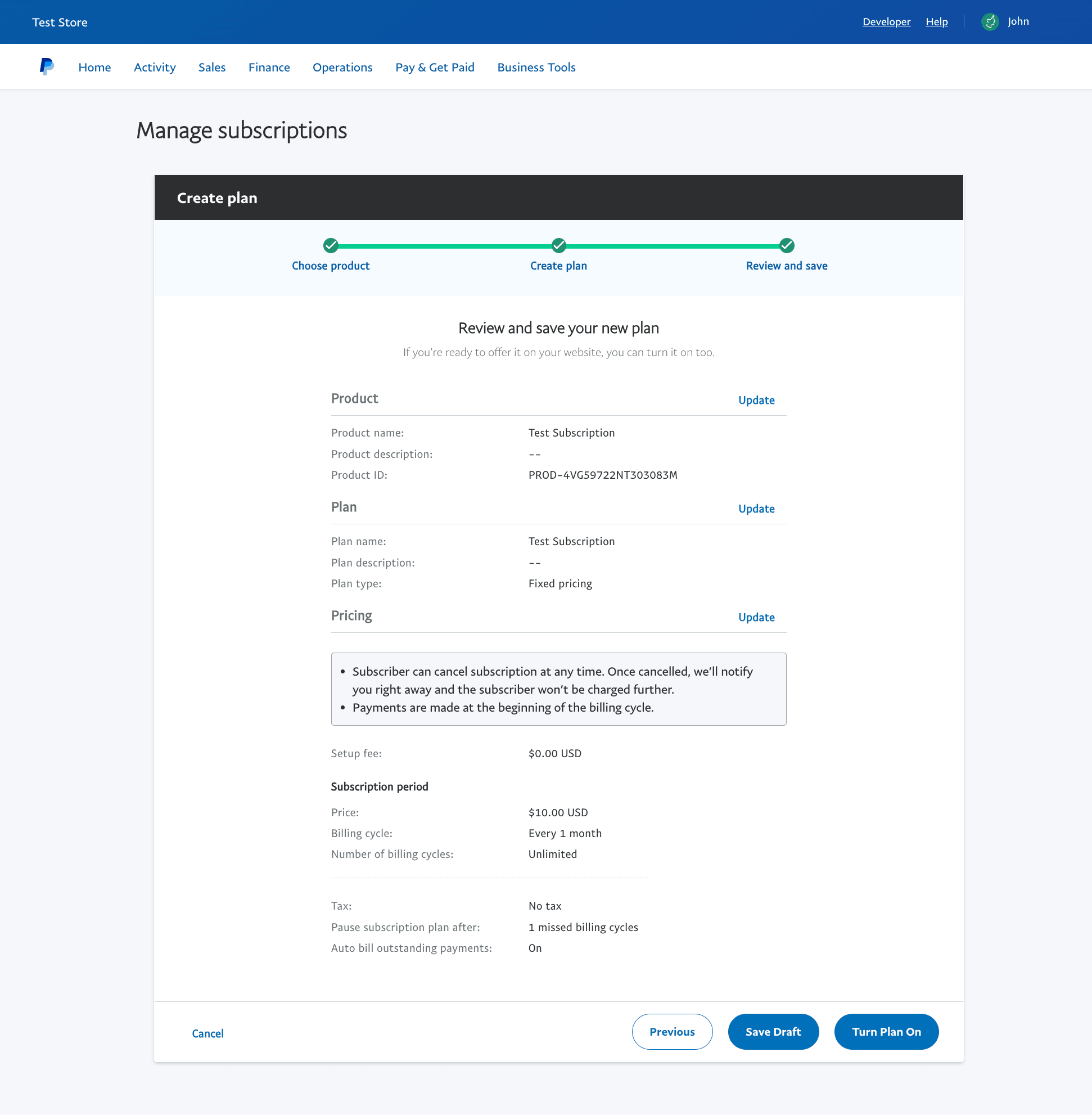
This value must be entered in the External Api ID field in the Flangapp plan settings. Please keep in mind that your billing cycle and subscription price have to match what you see in your Flangapp dashboard.
RazorPay
Create a new plan in your RazorPay account https://dashboard.razorpay.com/app/plans:

Right after creation confirmation, you will be able to copy the Plan ID. This value must be entered in the External Api ID field in the Flangapp plan settings.
Please keep in mind that your billing cycle and subscription price have to match what you see in your Flangapp dashboard.
YooMoney
Leave this field blank. You can change the terms of your subscription - payment cycle or cost while working. The new rules will only be available for new purchases. All previously purchased subscriptions will remain under the same terms and conditions until the current plan is cancelled.
Paystack
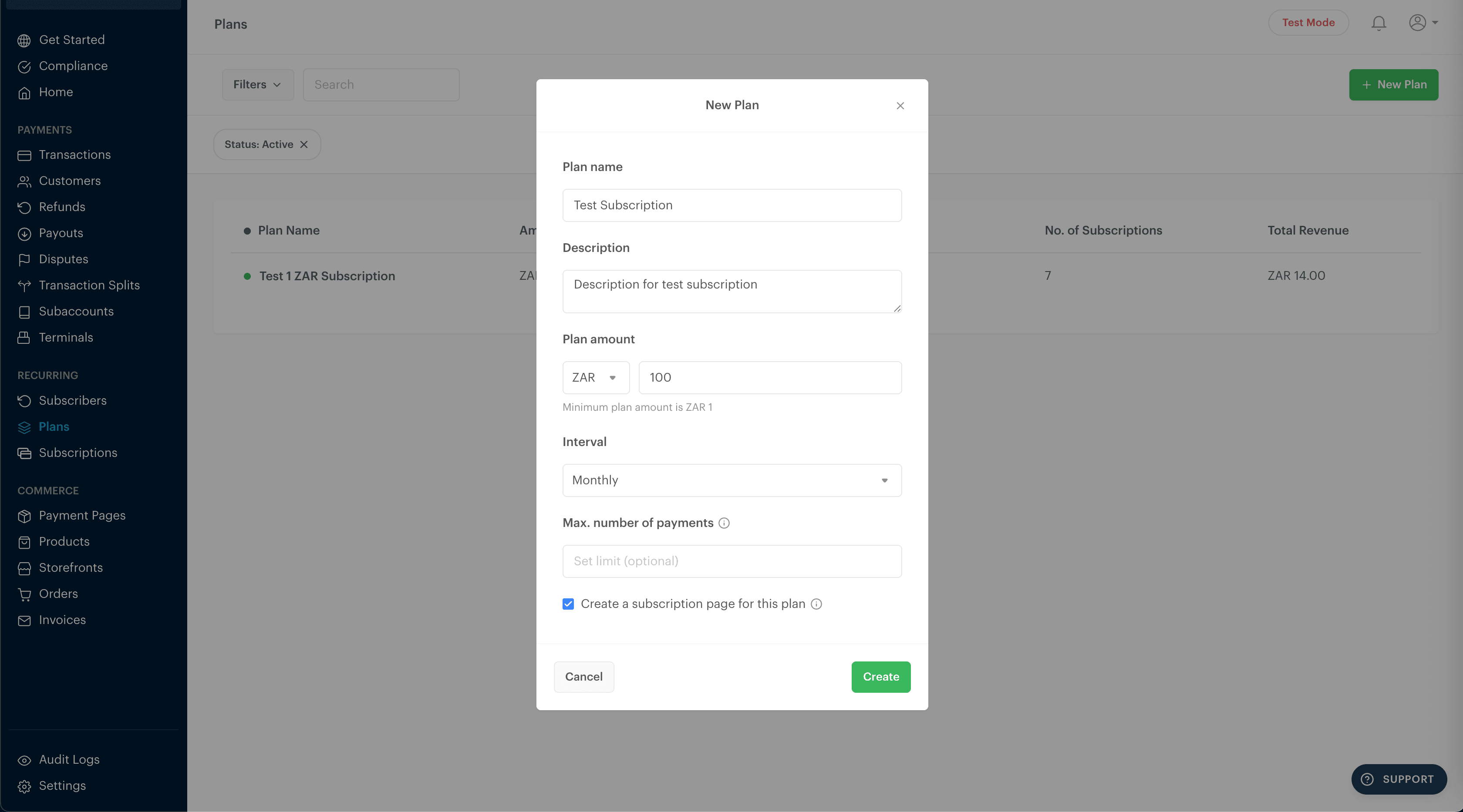
Create a new plan in your Paystack account https://dashboard.paystack.com/#/plans?status=active:
Right after creation confirmation, you will be able to copy the Plan Code. This value must be entered in the External Api ID field in the Flangapp plan settings.
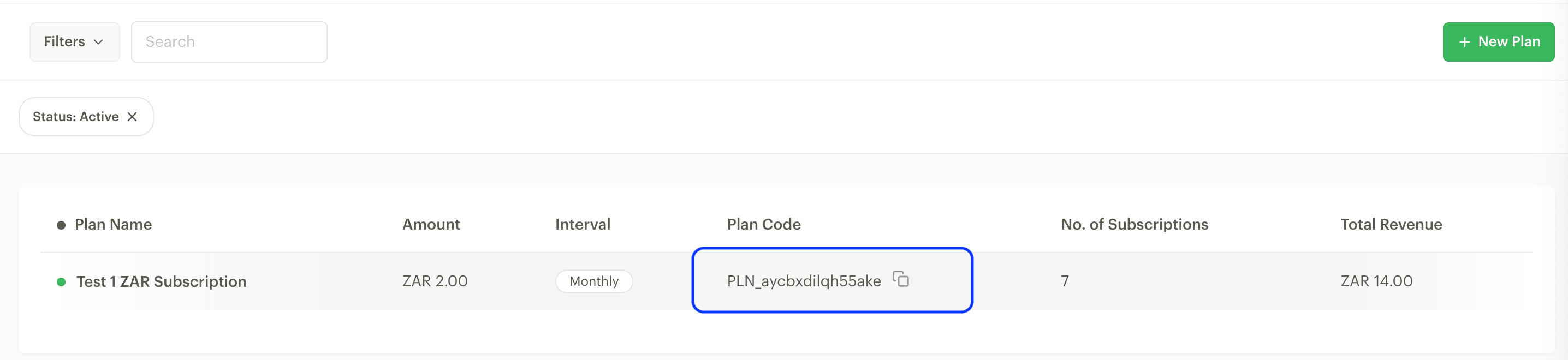
Please keep in mind that your billing cycle and subscription price have to match what you see in your Flangapp dashboard.