
PayPal settings
Go to the Dashboard - Payment Providers and click on the “PayPal” section:
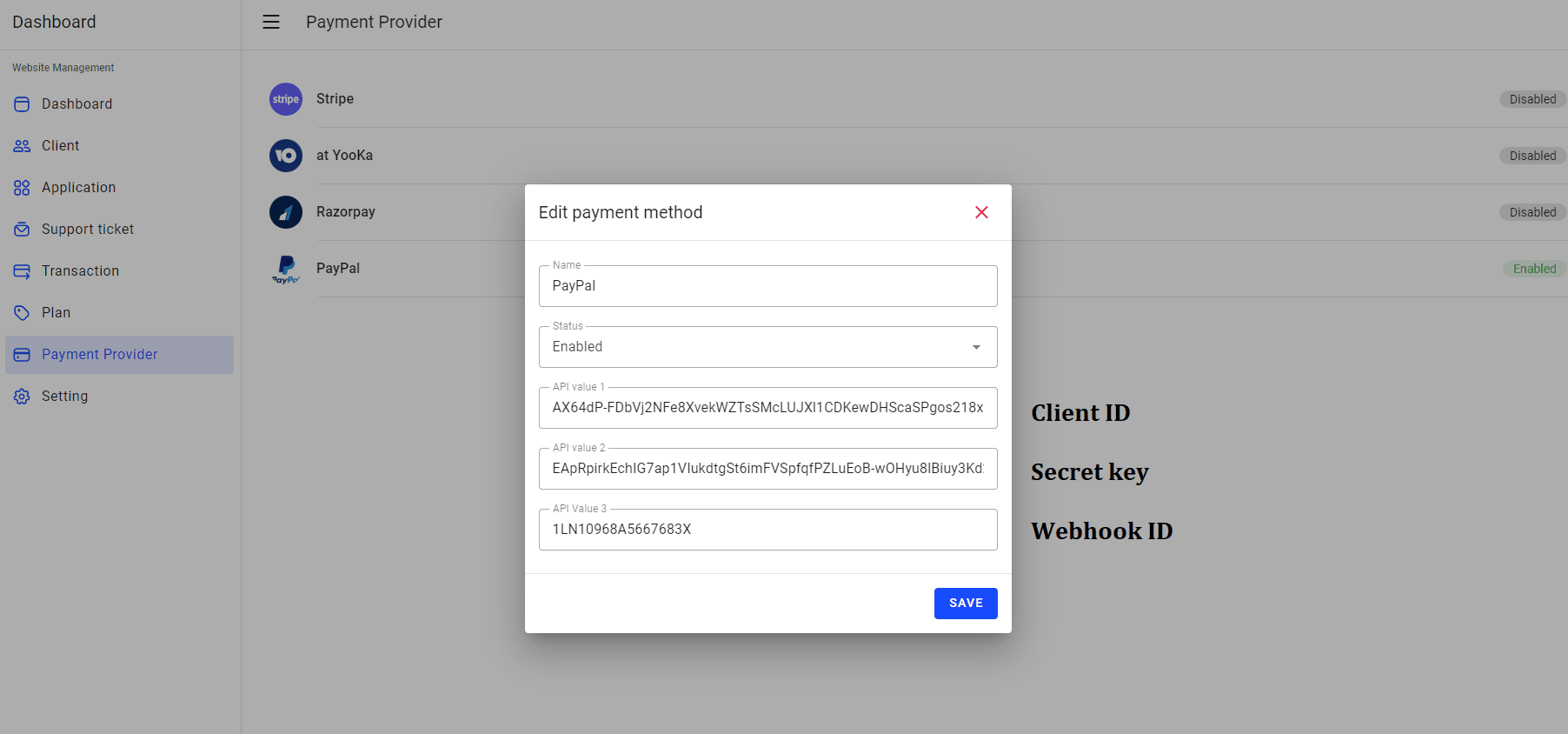
Fill in the form by entering the values as shown below:
1. Client ID & Secret key
Go to PayPal Developer and sign in with your PayPal account:
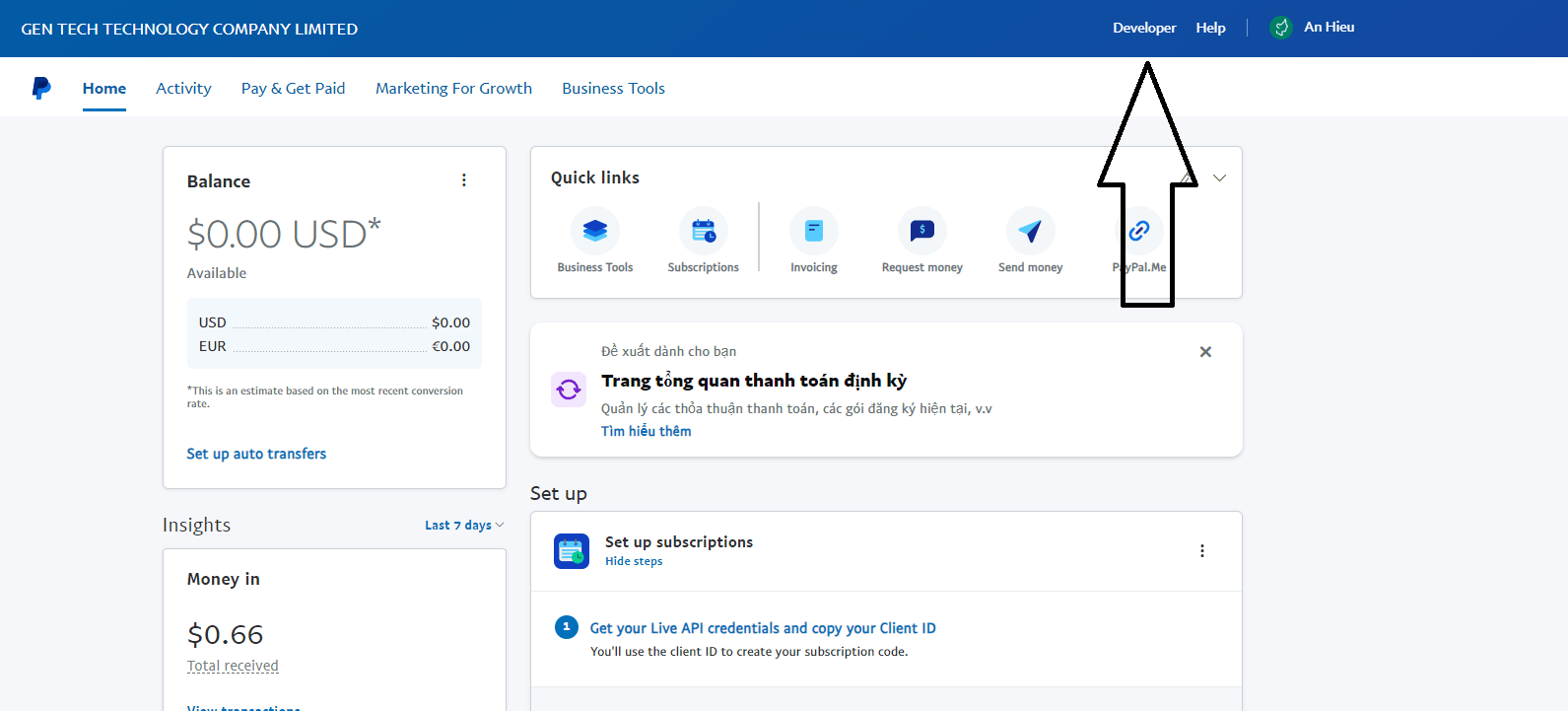
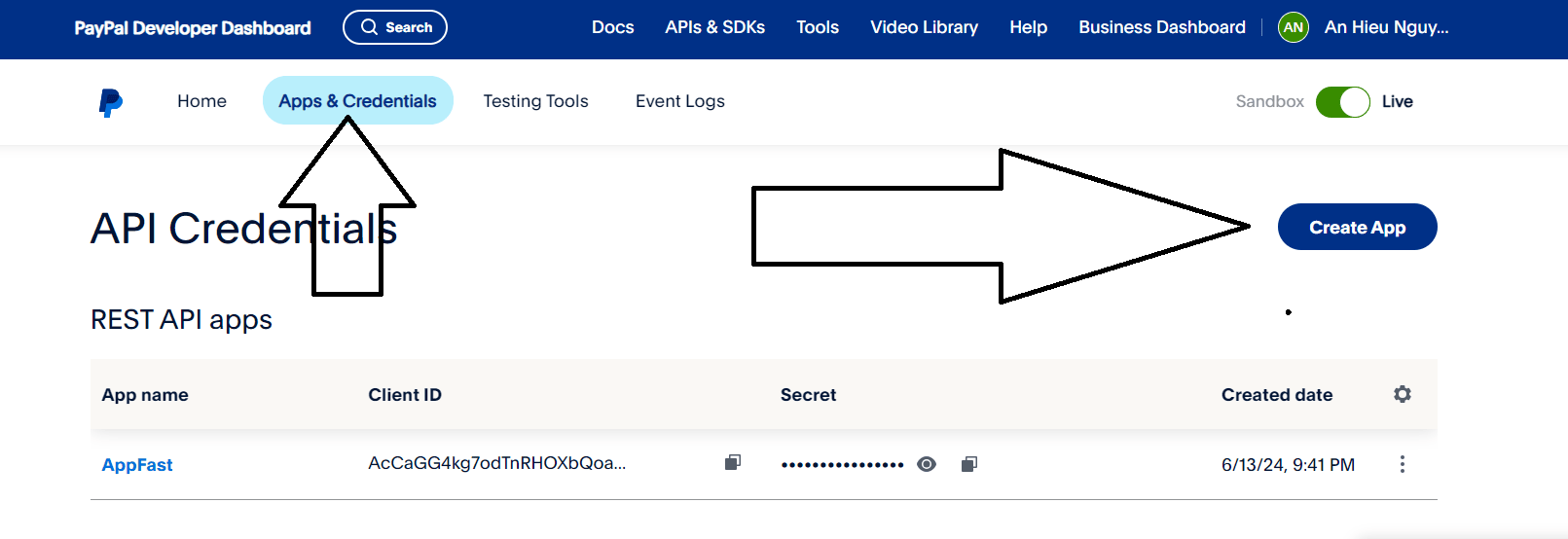
- Click "Dashboard" and select "Apps & Credentials"
- Click "Create App"
- Fill in the application name and select live account
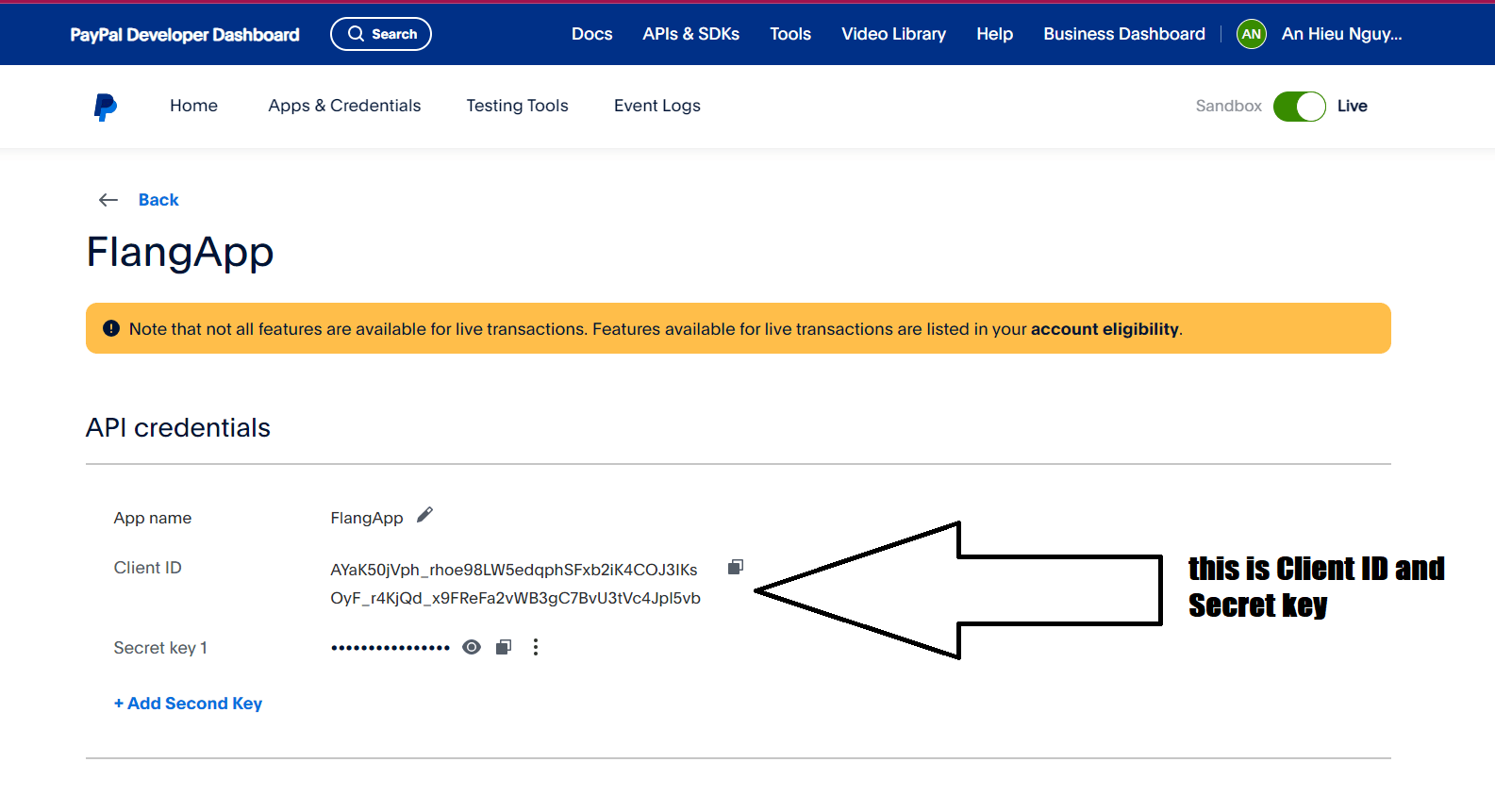
After creating the application, you will see the Client ID and Client Secret. Record this information for use in your source code.
2. Create Webhooks
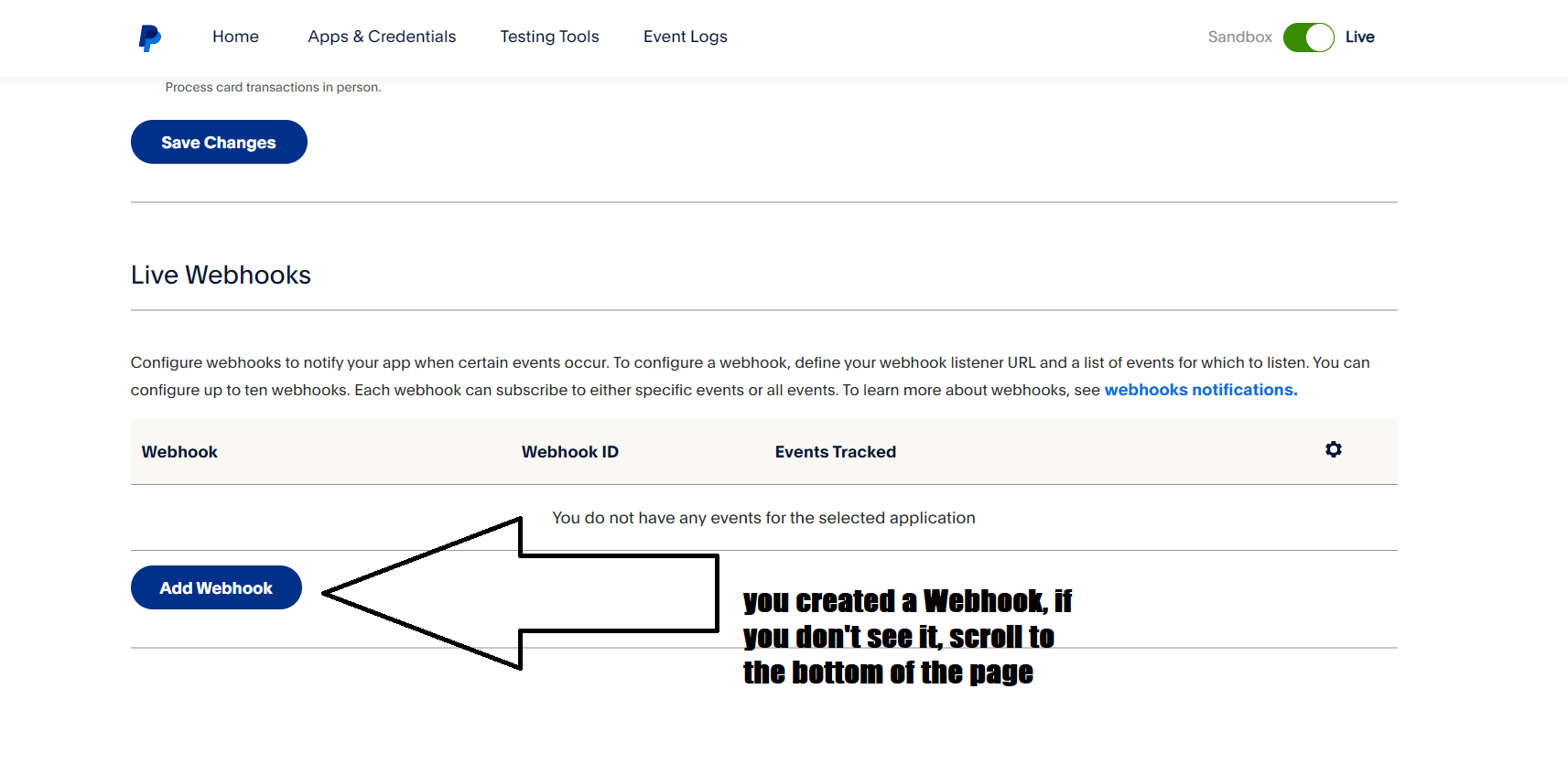
In your app page, scroll down to the "Webhooks" section. Click "Add Webhook".
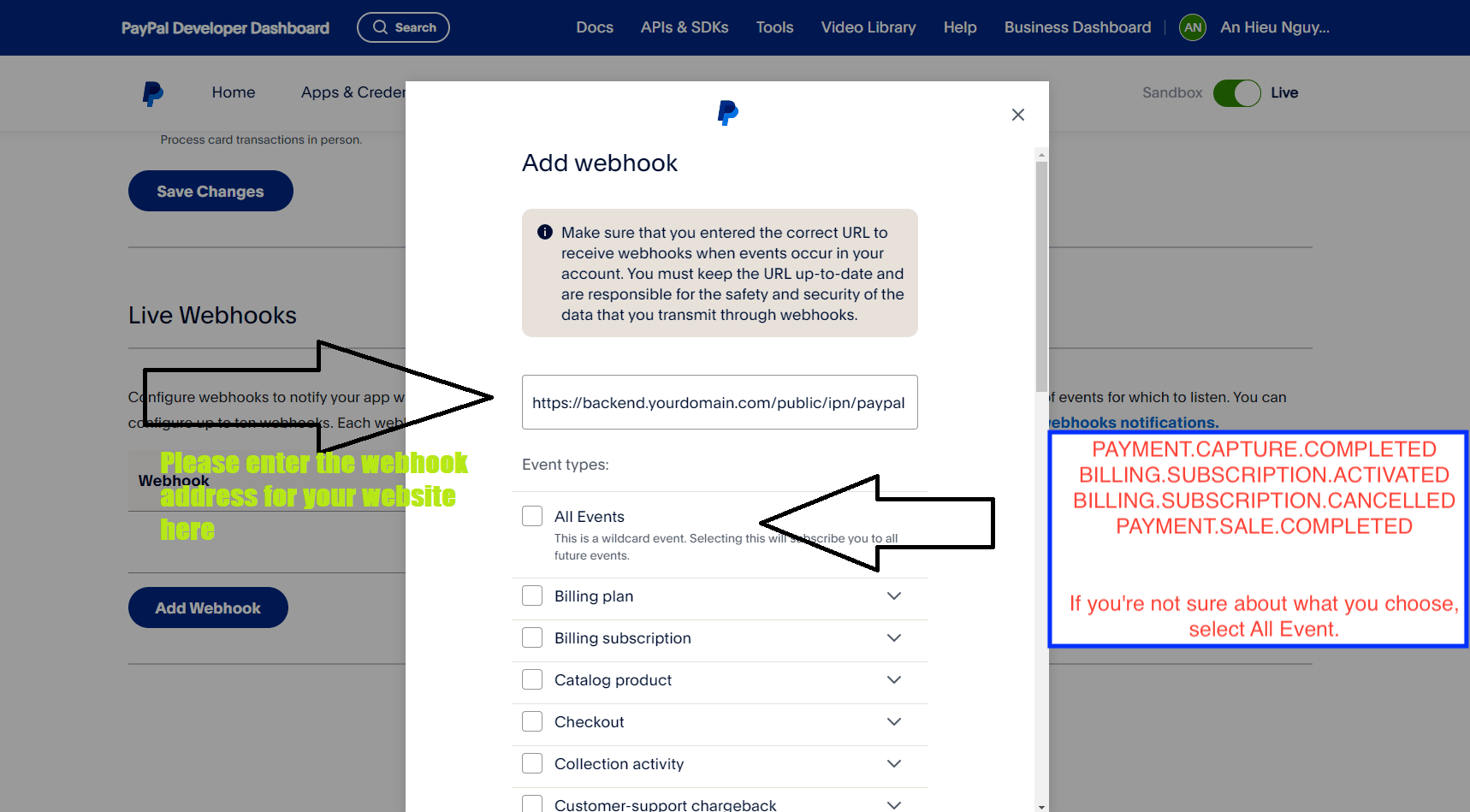
Fill in your webhook URL. This is the URL on your server that will receive notifications from PayPal: https://backend.yourdomain.com/public/ipn/paypal, please replace it with your exact backend domain.
Select the events you want to receive (e.g. PAYMENT.CAPTURE.COMPLETED, BILLING.SUBSCRIPTION.ACTIVATED, BILLING.SUBSCRIPTION.CANCELLED, PAYMENT.SALE.COMPLETED). If you're not sure about what you choose, select All Events.
Your webhook ID has appeared:
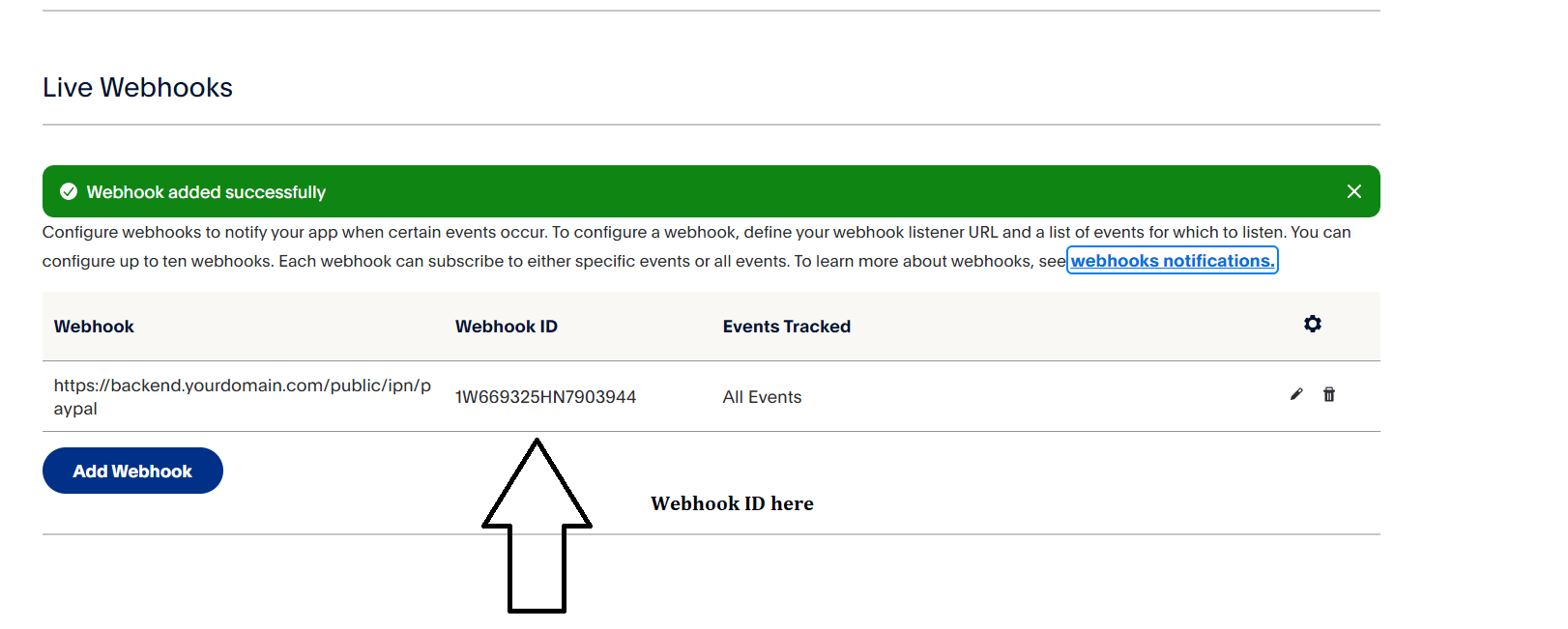
Copy Client ID, Secret and Webhook ID into the corresponding fields, your PayPal integration is ready to use.